
Microsoft 365 Copilot in PowerPoint speeds up presentation creation and helps you develop content step-by-step. Take advantage of five practical tips for improving structure, slides, and messaging.
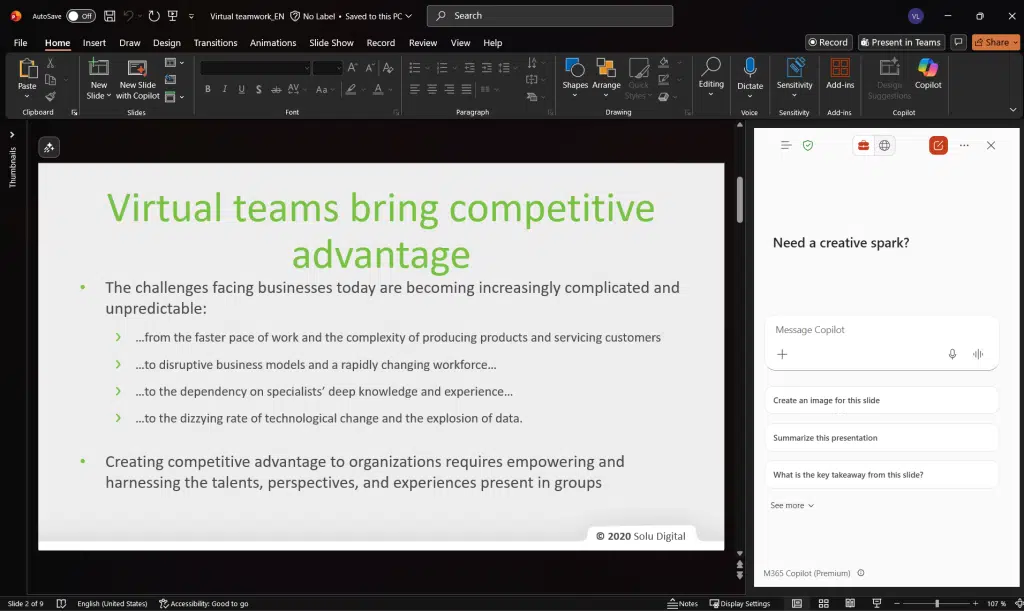
Implementing Microsoft 365 Copilot in Microsoft PowerPoint brings artificial intelligence to content production and enrichment.
Copilot acts as a continuous working partner in presentation creation, where content is not only generated, but also guided, refined, and developed iteratively.
Copilot in PowerPoint is located on the right side of the toolbar and operates in two roles. The Copilot chat supports thinking by helping structure content and define instructions, while Copilot in PowerPoint applies these directly to slides.
In practice, this means that commands are given in PowerPoint, not in a separate chat. The presentation is built in an interaction, where Copilot produces content and the user guides it forward.
Click Edit with Copilot to open Copilot chat or start creating or editing a presentation directly with Copilot in PowerPoint (dark background in Copilot window).

After clicking Edit with Copilot, Copilot in PowerPoint can be found in the upper-left corner of the presentation, and Copilot chat on the right side (light background in Copilot window).
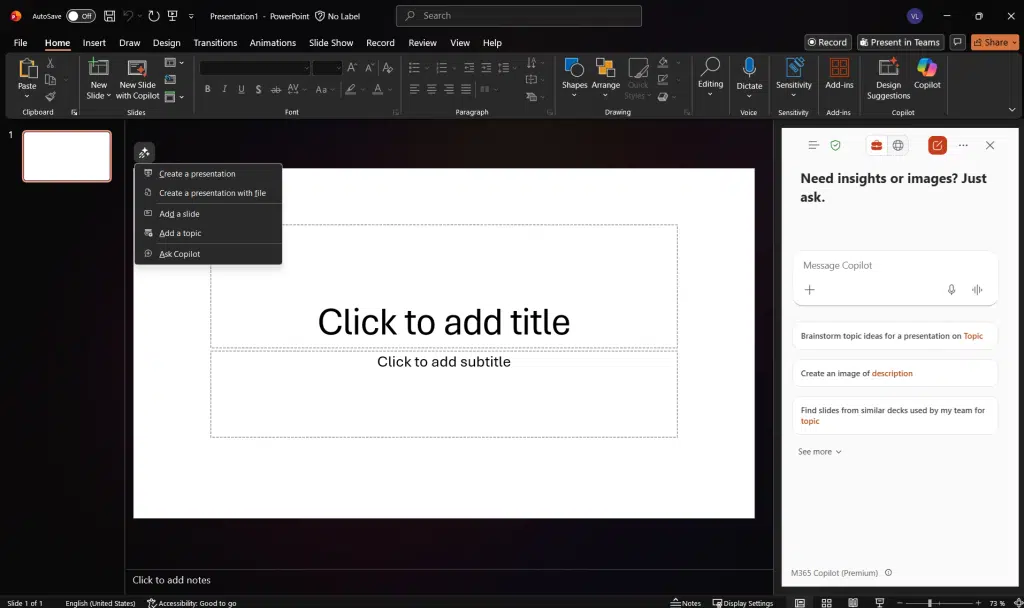
Read our five tips to get the most out of Copilot’s features in PowerPoint.
1. Start with a ready-made story
Copilot in PowerPoint offers a “Create Presentation” feature that allows you to create an entire presentation from a single prompt or source document. The presentation structure, headings, and speaker notes are generated automatically, but the final result depends on how carefully you control Copilot.
With Copilot, you can start from scratch or use your organization’s branded template and get a working structure that you can modify to suit your needs. The first version serves as a starting point, which is further developed by refining the content with Copilot.
Practical tip: Always write the goal, target audience, and outcome in the prompt. For example: “Create a sales presentation for B2B decision-makers on the implementation of artificial intelligence”.
You can ask Copilot to create your presentation slides, which it will save as a presentation in your OneDrive folder.
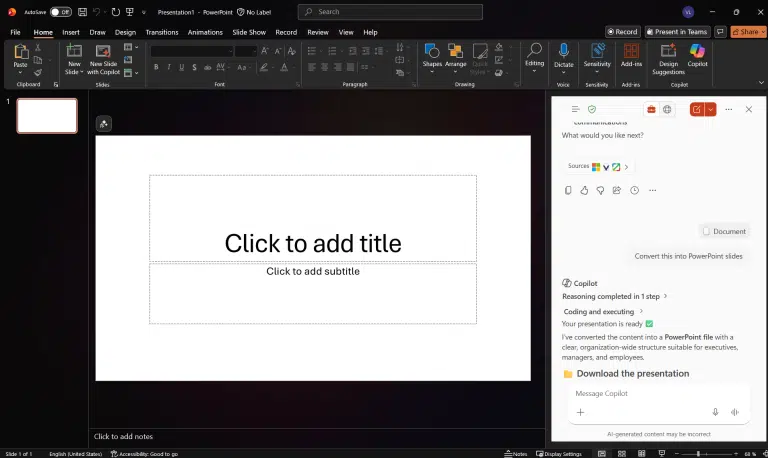
Alternatively, you can build your presentation in PowerPoint using Copilot.
Step 1: Create the content of the presentation in the Copilot chat.
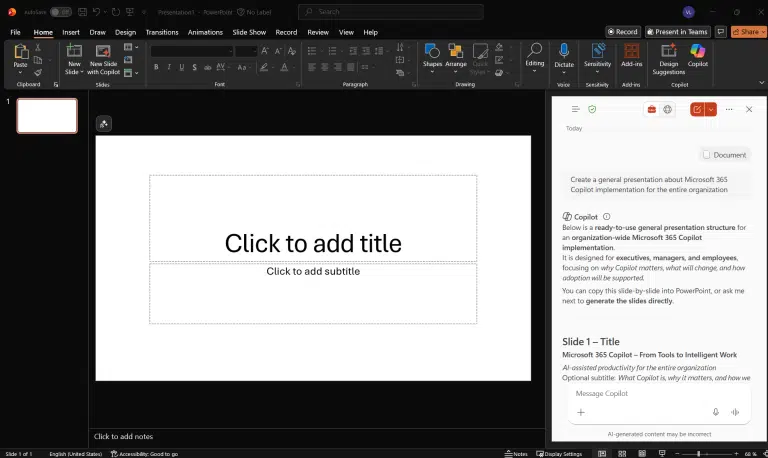
Step 2: Create the presentation slides with Copilot in PowerPoint.
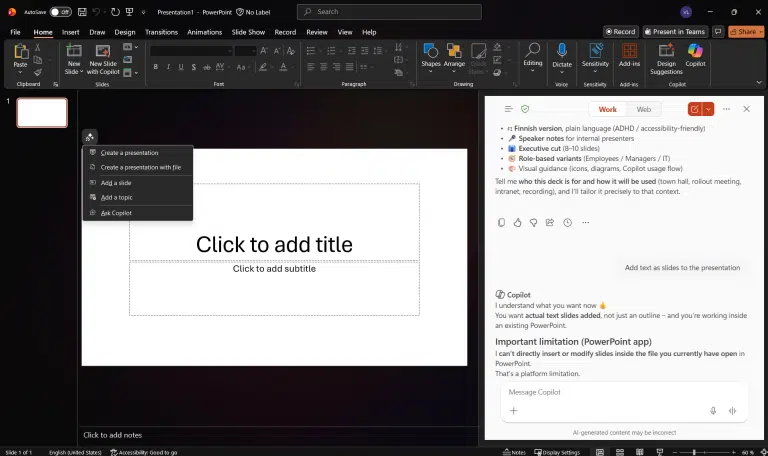
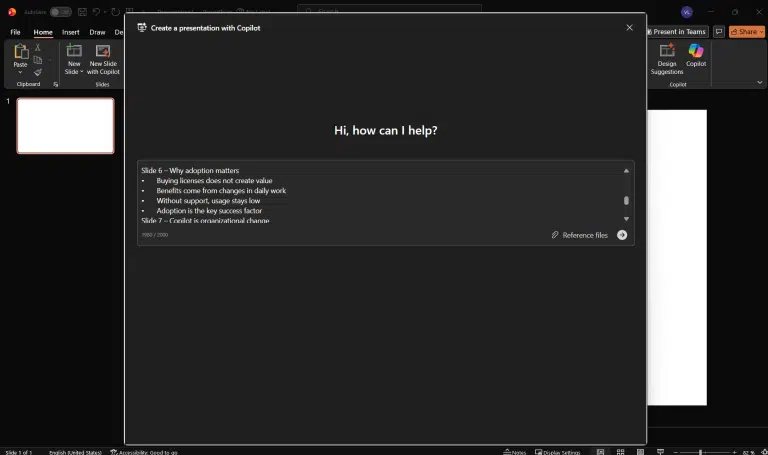
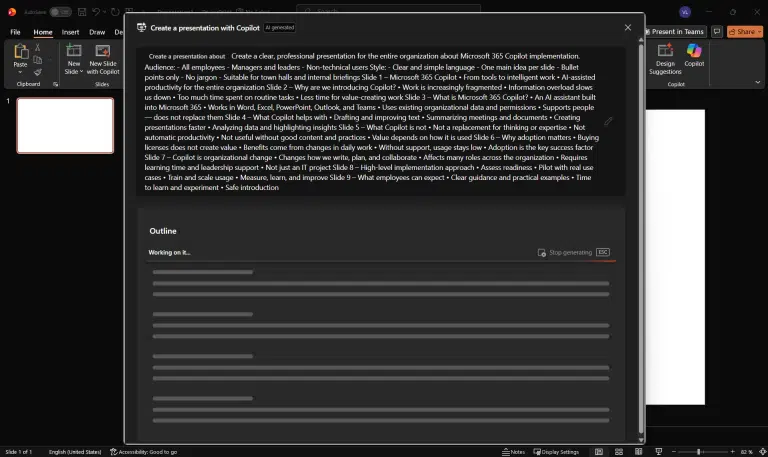
Step 3: Choose the presentation style from the style and image options suggested by Copilot or use your organization’s own presentation template.

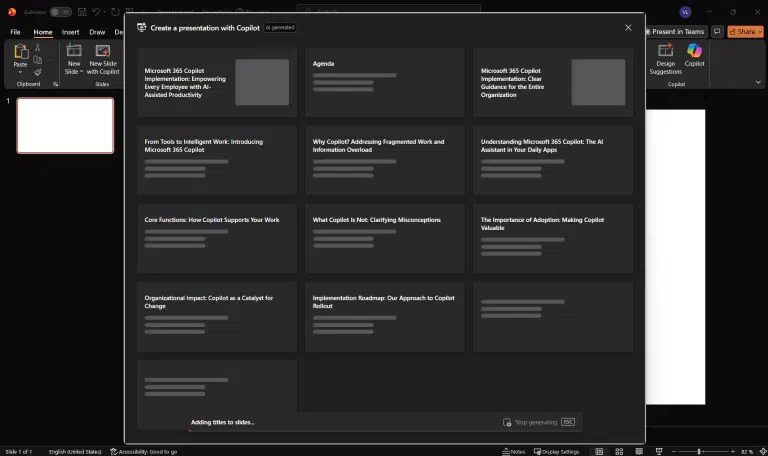
Step 4: Edit the slides suggested by Copilot.

2. Create compelling and clear slides
One of PowerPoint’s key strengths is its visuals. Copilot in PowerPoint helps you choose images, icons, colors, and layouts that support the message and structure of your presentation. Visuals are not just about appearance, but also about clarifying content.
Copilot also works with individual slides. You can ask it to summarize content, change tone, or reorganize text without changing the entire presentation. This way, a single slide can quickly become an understandable and visually effective whole.
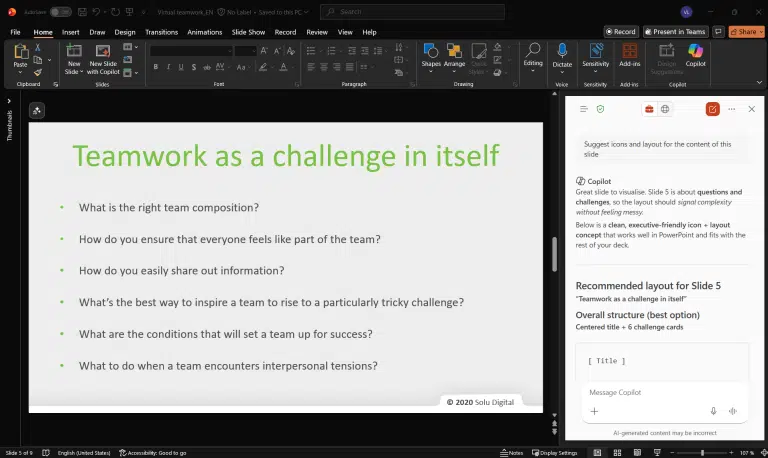
Practical tip: For a more dynamic visual look, ask Copilot to suggest theme-appropriate icons and layouts for each slide. For example, you can use the prompt “Suggest icons and layouts for this slide content”.
3. Create slides from PDF files and other sources
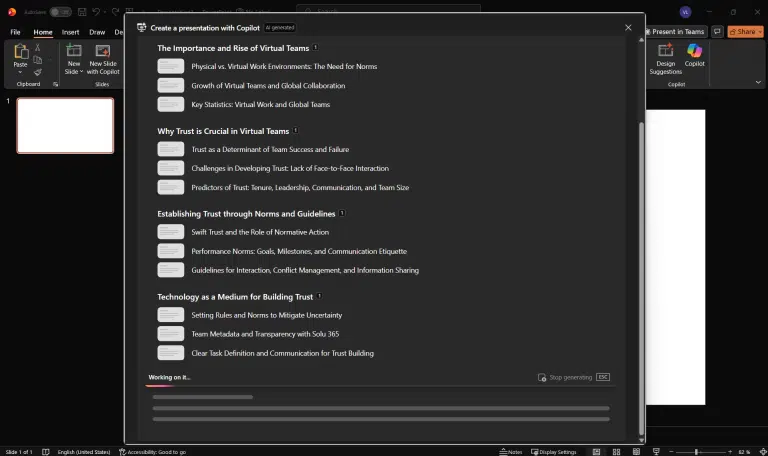
Using Copilot in PowerPoint allows you to build a presentation from multiple sources, including Word, PDF, and Teams notes.
This feature saves you time, as Copilot creates slides based on relevant information. In addition, Copilot can combine the contents of several different files into one presentation —for example, you can use Word files and other PowerPoint presentations simultaneously.
Copilot doesn’t just summarize content; it builds a logical presentation structure that you can then edit.
Practical tip: Ask Copilot to summarize a PDF or Word file and create concise slides based on it. This is especially useful when your presentation is based on extensive source material, and you can later refine the slides with your own insights.

4. Use conversation to refine and structure your slides
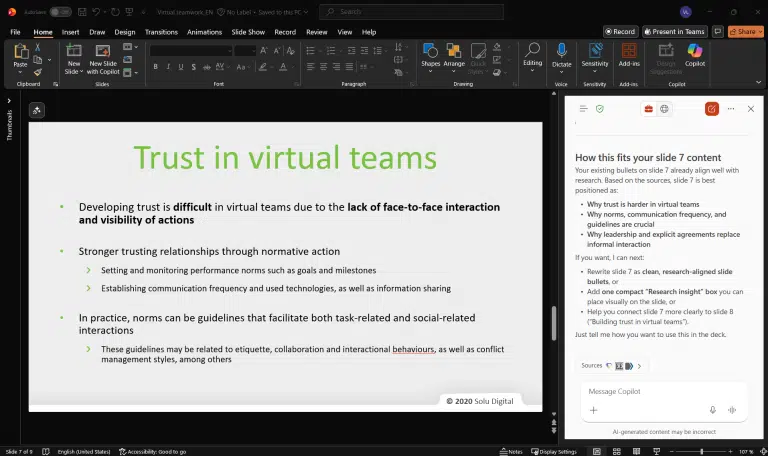
Copilot in PowerPoint works in a conversational way, allowing you to ask questions about the presentation content, request summaries, and redirect the structure. Instead of manually editing the presentation slide by slide, you can develop the whole thing interactively.

Practical tip: If your presentation has many slides or seems cluttered, ask Copilot to createa summary of the entire presentation. This will help you identify the core points, weed out less relevant content, and highlight the most essential points.
5. Iterate and refine your presentation with Copilot
Using Copilot in PowerPoint works best as a step-by-step process. The first version of your presentation is not final, but rather you develop it by guiding Copilot to refine the content, structure, and message.
There’s no need to manually edit your presentation slide by slide. With Copilot, you can request changes to the entire presentation or individual slides, keeping the overall presentation consistent and the message clear.
Practical tip: Continue the conversation with Copilot with commands like “Add a slide about risks” or “Simplify the structure.” This way, you can progress your presentation step by step without having to start over.

Discover new dimensions for PowerPoint presentations with Copilot
Microsoft 365 Copilot in PowerPoint speeds up the process of creating presentations from start to finish. When you use Copilot to create structure, edit content, and develop your presentation step-by-step, presentations are created faster and the message stays clear from start to finish.
If you want to get more out of Copilot in PowerPoint, explore our Copilot training.
Read more about Microsoft Copilot:
- 5 tips for using Copilot in Outlook
- 5 tips for using Copilot in Excel
- 5 tips for using Copilot in Word
- 5 tips for using Copilot in Teams
- Copilot in Excel – Query Power BI Management Model in Excel with Copilot
- Microsoft’s Copilot AI assistants for different business needs
- Building custom AI assistants with Copilot Studio
- Microsoft Planner with premium features and Copilot
- Ensure data security before rolling out Copilot