
With Copilot, you can now query and analyze Power BI data in Excel using natural language, making accessing information without advanced analytical skills easier and faster.
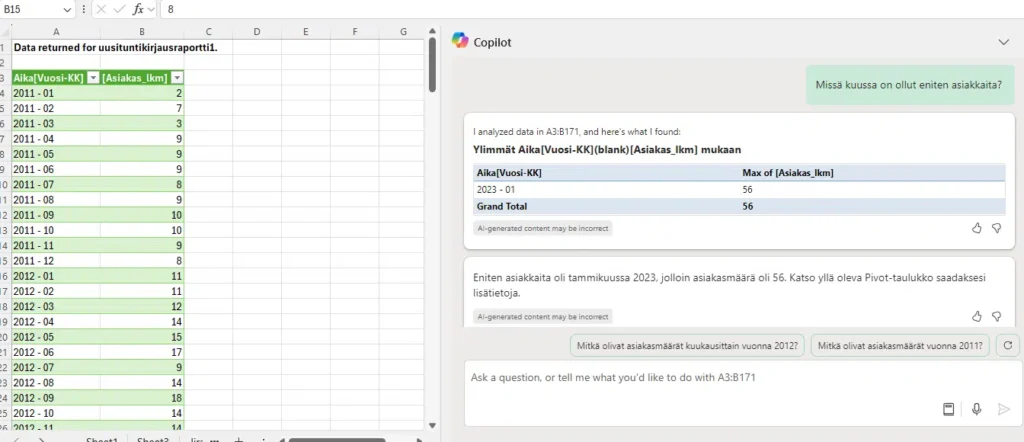
Excel has long been a key tool for data analysis, and now Microsoft’s Copilot technology brings it to a new dimension for users. Copilot enables intuitive querying and analysis using natural language, so users don’t have to be advanced analysts to get valuable insights from their data.
What Copilot can do in Excel
Copilot is an artificial intelligence-based assistant that helps you query and analyze data quickly and intuitively. For example, it can help you search for specific values, create reports, and present data in an understandable format.
Excel and Power BI are powerful when you want to analyze and manage large amounts of data. Previously, you could connect a Power BI data model to Excel for pivot tables, but now you can do the same using traditional tables. You can analyze a Power BI data model in Excel using Copilot in a simple yet richly queryable format quickly and easily.
However, please note that when importing data into Excel, Copilot only supports traditional tables, not Pivot Tables.
Importing Power BI data into Excel
Importing Power BI data into Excel is a simple process:
In Excel, select Get Data -> Fabric & Power Platform -> Power BI.
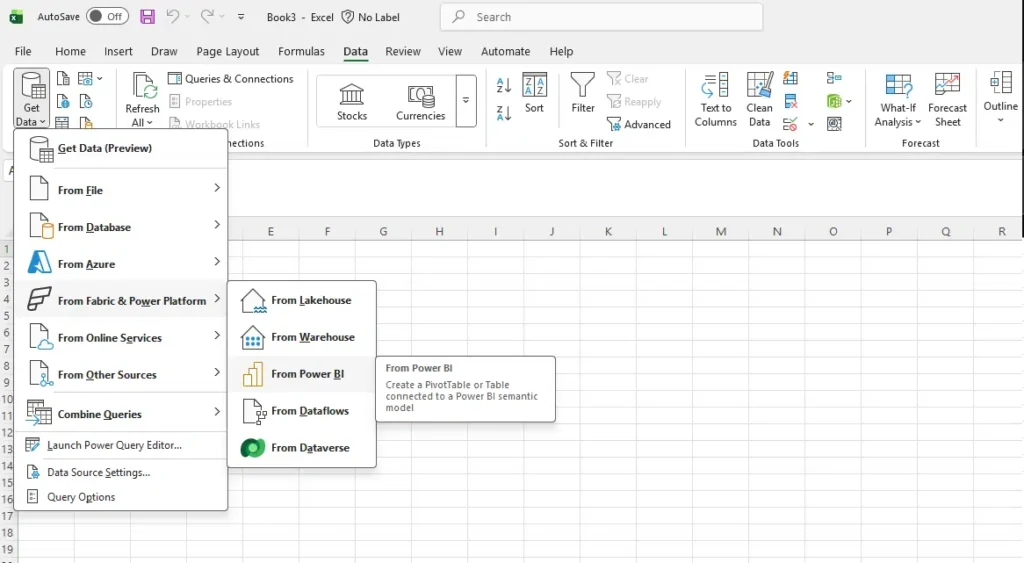
Select the desired Power BI data model and import it into Excel as a traditional table.
Select the necessary measures and dimension values to create the table.
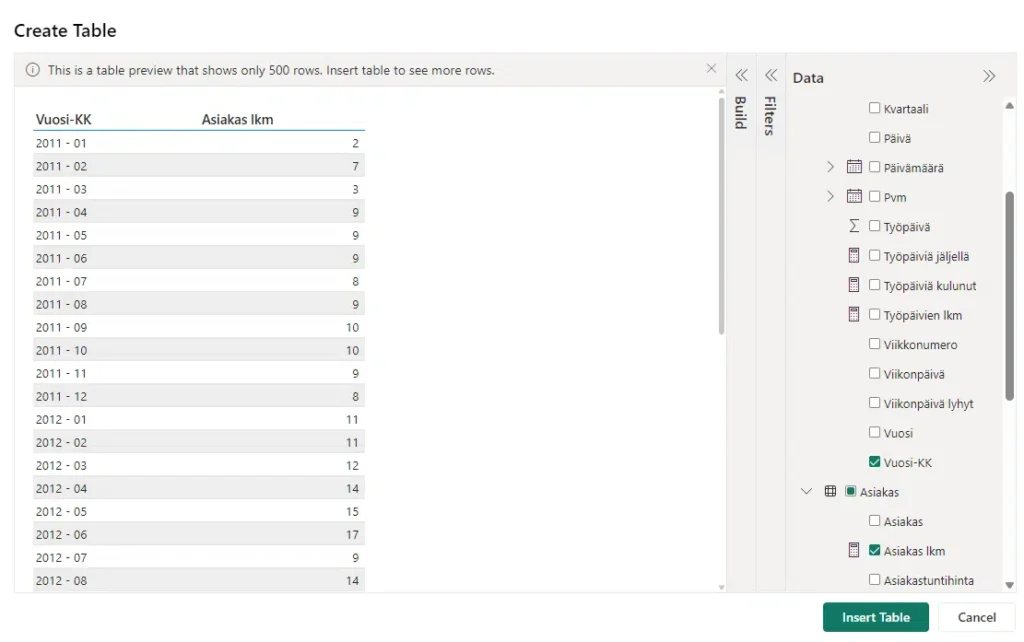
Save the file to SharePoint or OneDrive and enable autosave to ensure that the data is updated dynamically.
Using Copilot for queries
Once the table is created, you can start building queries with Copilot.
In Excel, select Home -> Copilot -> Chat.
Copilot understands natural language, so you can ask questions like:
- “What are the top five products sold last month?”
- “How much revenue did product group X generate this year?”
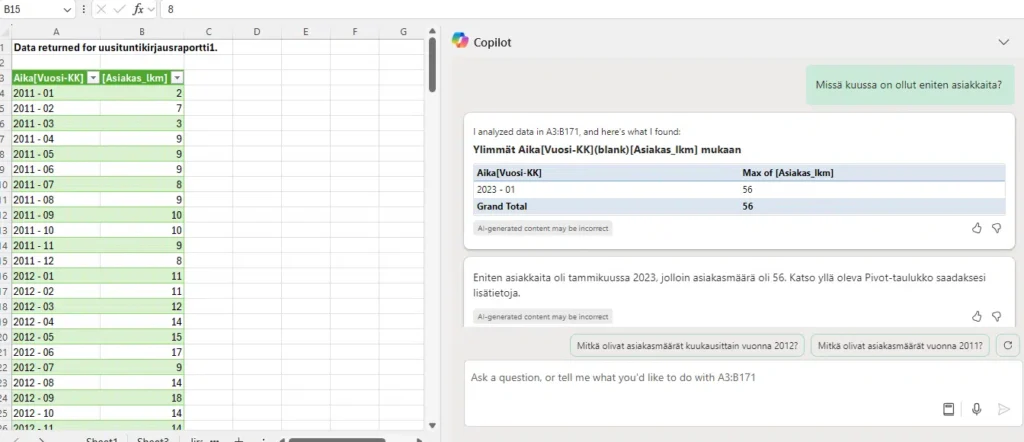
Copilot analyzes data using natural language and provides answers in a clear format. For example, you can also refine your questions and request information about specific categories or periods. Working with Copilot streamlines your analysis work and helps you get deeper insights without complex code or manual work.
Analyze Power BI data more efficiently with Excel and Copilot
Using Copilot in Excel helps you save time by quickly performing queries and analyses without complex manual processes. The AI assistant’s interface is intuitive, and natural language makes it easy to formulate questions. Thanks to automatic saving, the Power BI data model remains up to date, and the analyses are always based on current information, helping you make better decisions based on the data.
The best way to utilize Copilot is to ensure the correctness of your data, keep the data model updated, and store your files in the cloud. This will maximize the benefits that Copilot offers.
Try Copilot today and take your Excel analysis to the next level!
Jere Palanne
CTO, Partner
Read more: